Create Group and User in AWS
To create a group and a user in AWS, you typically use the AWS Management Console, AWS CLI, or Infrastructure as Code tools like CloudFormation or Terraform. Here’s a quick guide for the most common methods:
Using AWS Management Console
1. Create a Group
- Sign in to the AWS Management Console.
- Go to IAM (Identity and Access Management).
- In the left navigation pane, click User groups.
- Click Create group.
- Enter a Group name.
- (Optional) Attach policies to set permissions for the group.
- Click Create User group.
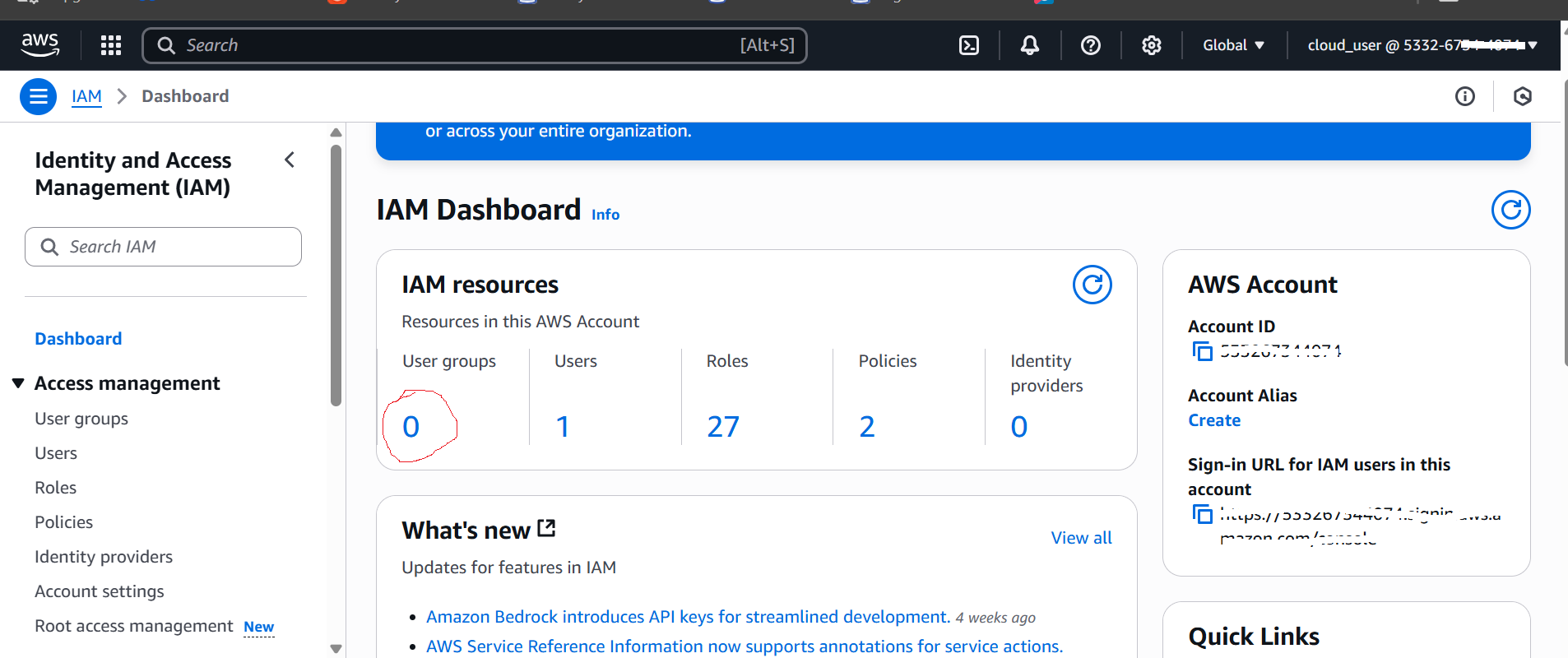
as per Above image we can clearly see no group is existing.
Next Step to click on User Groups link available in left side menu.
Next Page will appear where user can click on "Create Group" button to create the group with desired policies.
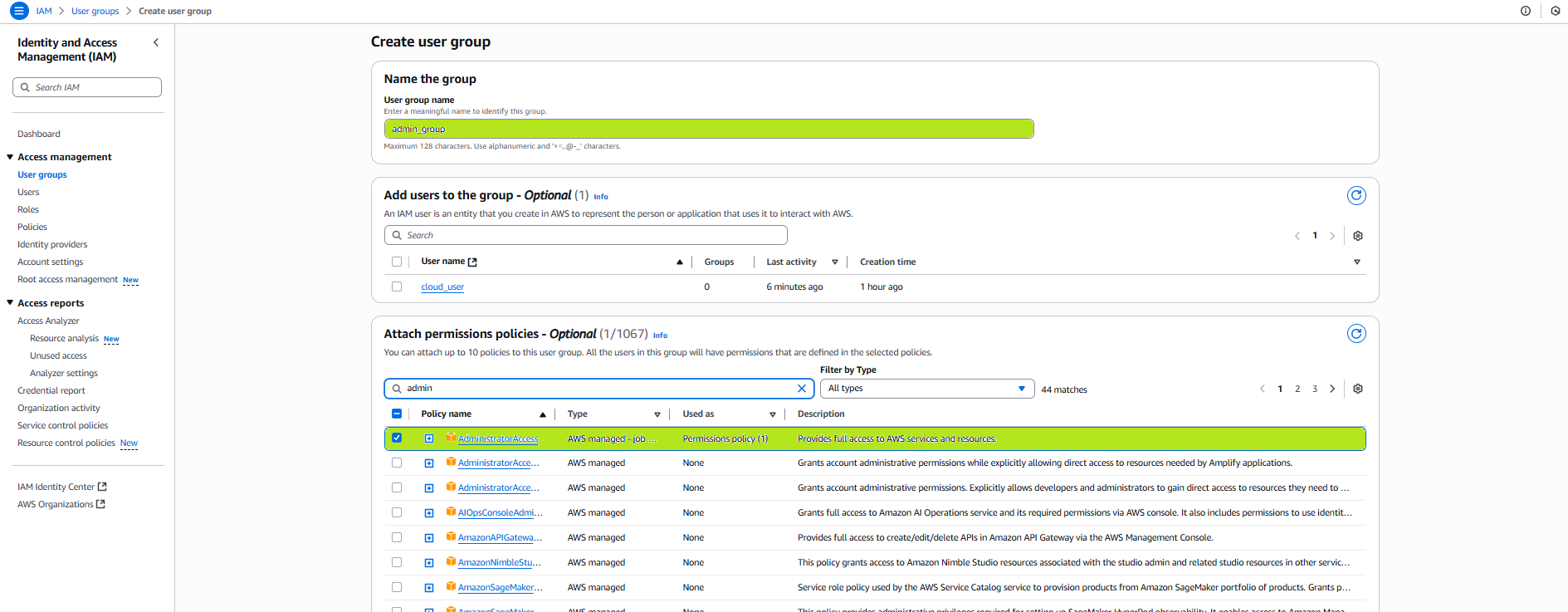
After Submit the "Create User Group " group will be successfully created.
Next Page looks like below:

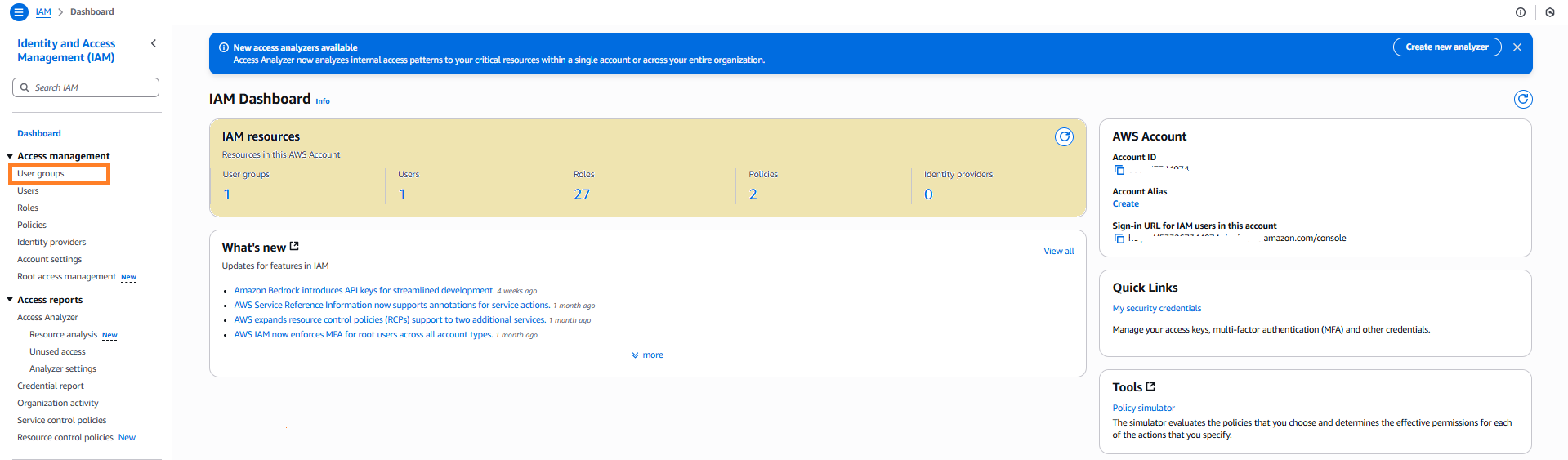
After Successful creation of Group. Below is the new IAM dashboard.
2.Create a User
- In the IAM dashboard, click Users in the left pane.
- Click Add users.
- Enter a User name.
- Select the type of access (Programmatic access, AWS Management Console access, or both).
- Click Next: Permissions.
- Add the user to the group you created earlier (or assign permissions directly).
- Complete the steps and click Create user.
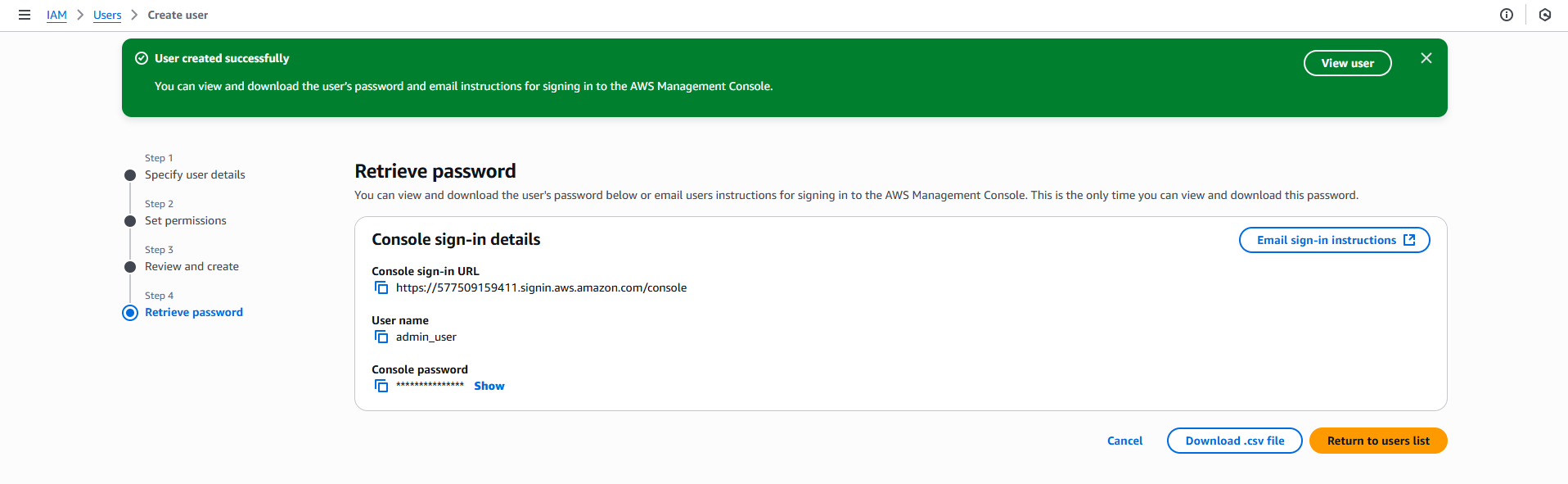
Find The screenshot for all steps during User creation.
Available Users
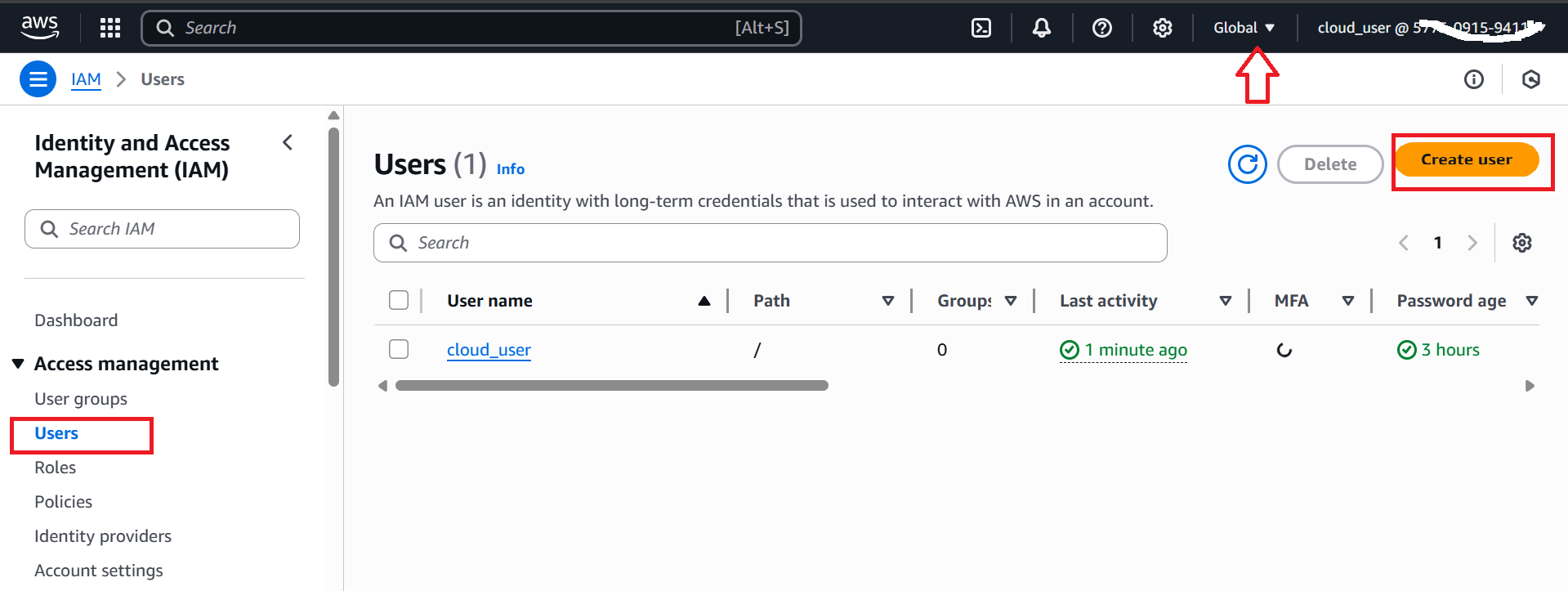
Note: As per above screenshot, we can see, region will be global during User or Group creation.
After Clicking on Create User button next Page will be
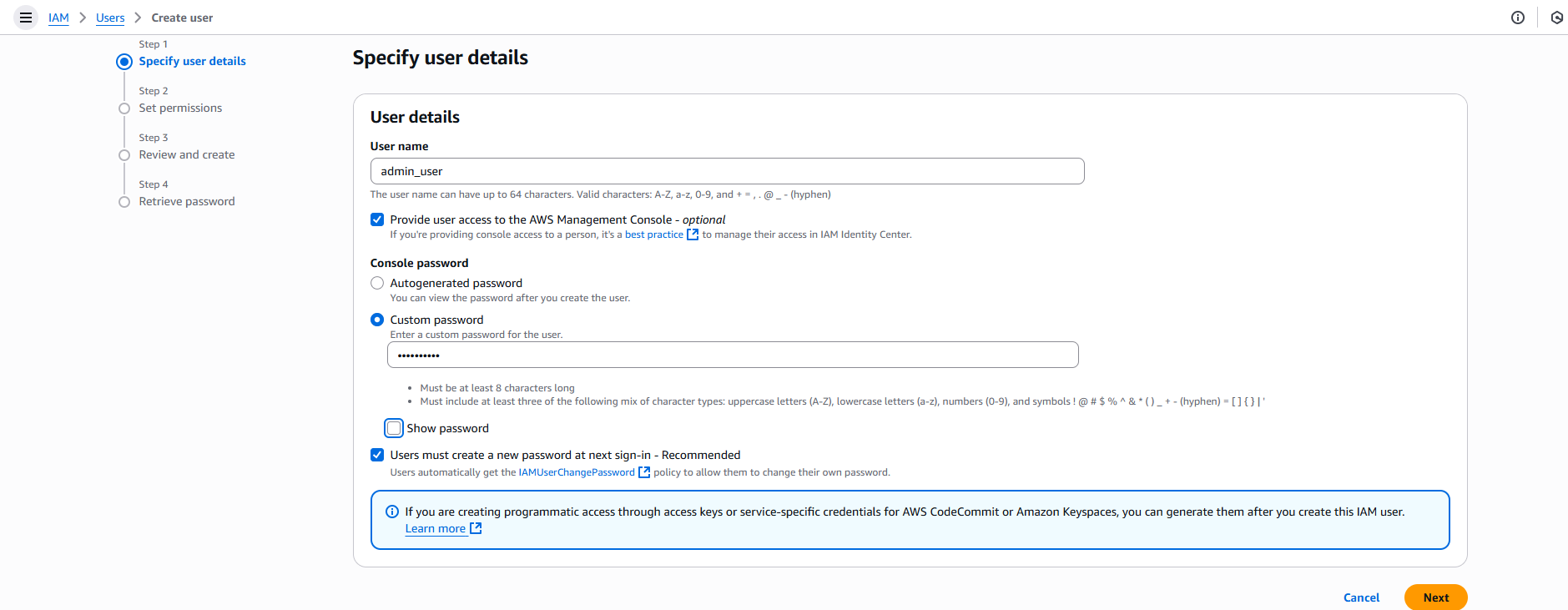
>> Next
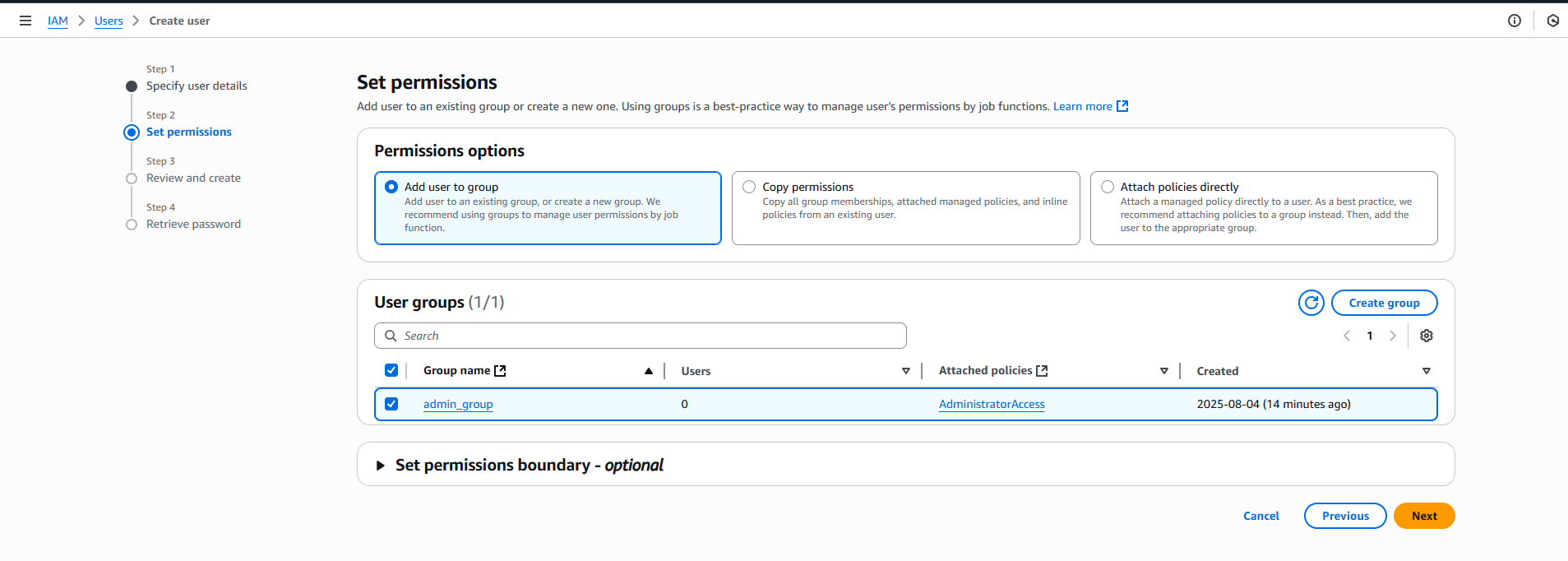
>> Next
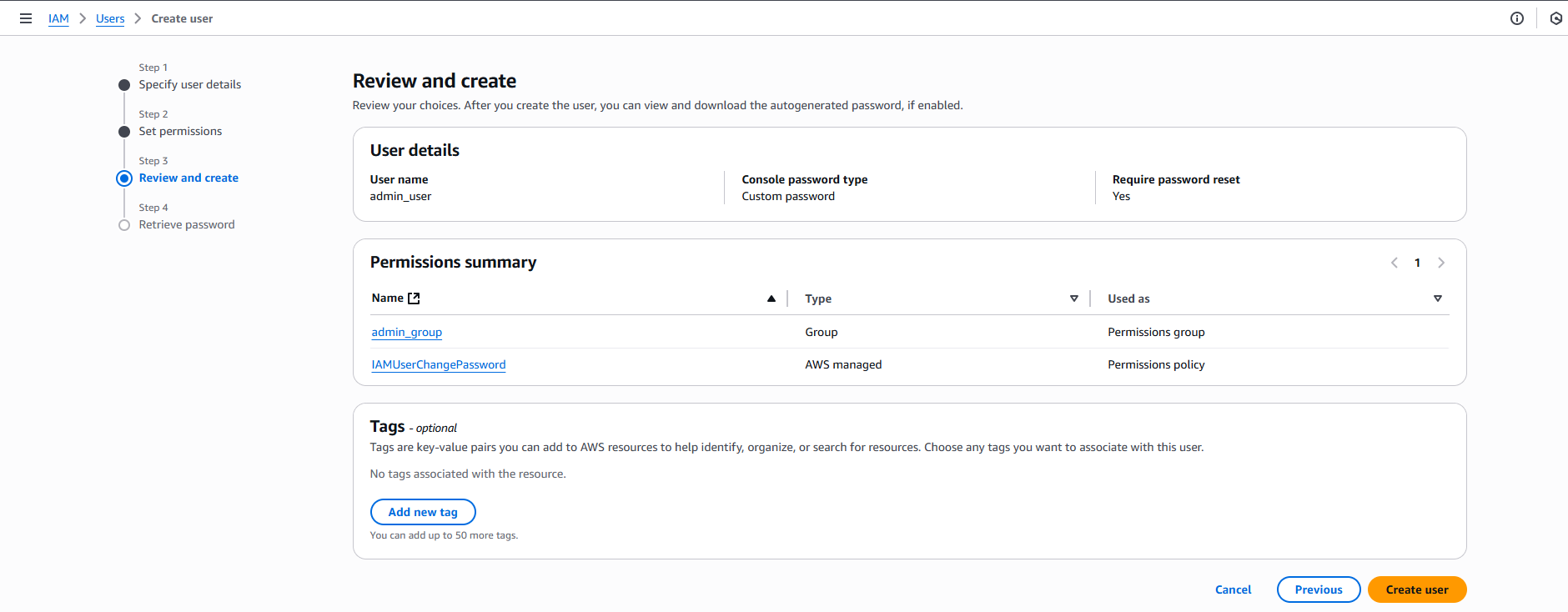
>> Create User