
Scala Setup And Installation Locally
In this chapter we will cover to set up Scala locally and will try to understand how Scala works with JVM.
Most of the learners come from Java background, we will try to compare steps along with Java perspective as well.
Install Scala and Set Up the JVM
Understand the tools you need
Before installing Scala, understand the role of each component.
Component | Purpose |
|---|---|
JDK | Provides Java development tools and the JVM runtime. |
JVM | Executes JVM bytecode produced by Scala and Java compilers. |
Scala compiler | Compiles Scala source code into JVM bytecode. |
Scala CLI | Runs, compiles, and tests Scala programs from the command line. |
IntelliJ IDEA | Provides an IDE for writing, running, and debugging Scala code. |
The basic execution flow is:
Scala source code → Scala compiler → JVM bytecode → JVM → Program output
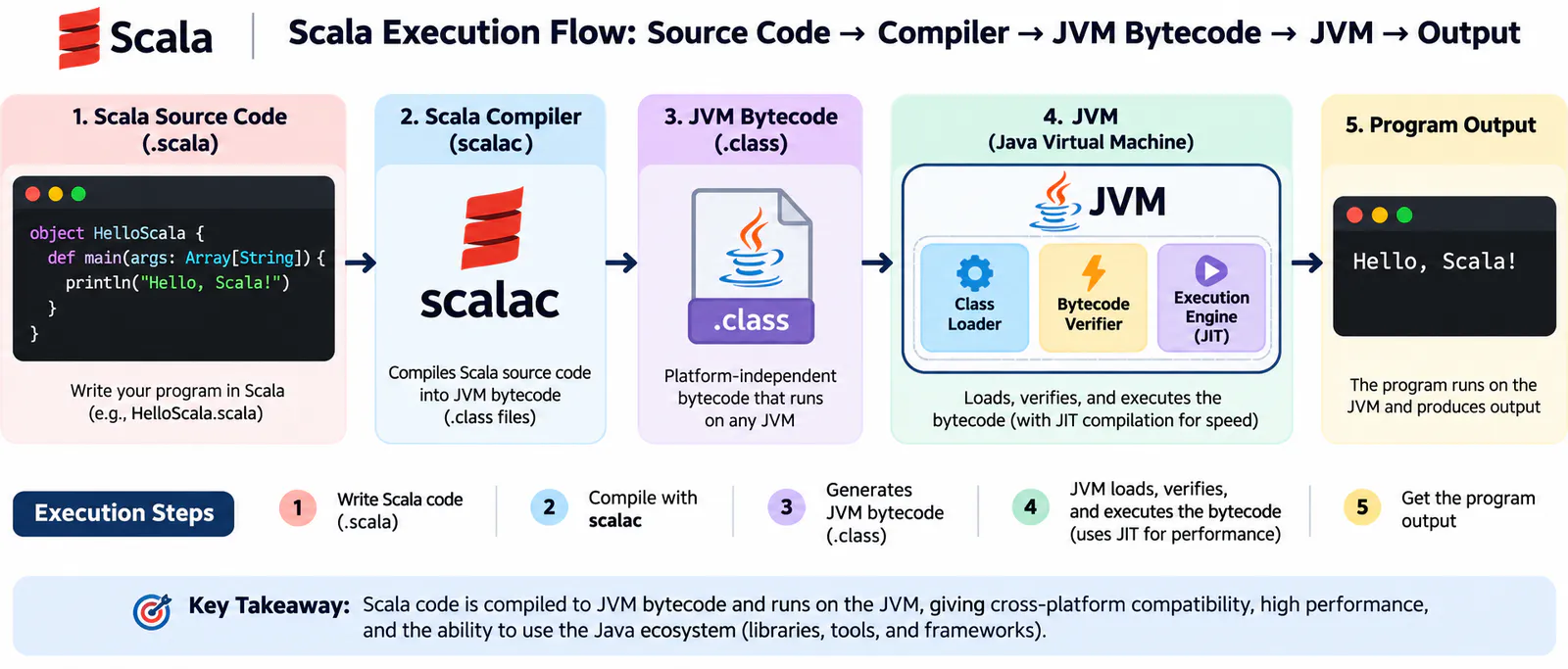
For example, when you write:
println("Hello, Scala!")The Scala compiler translates your code into JVM bytecode. The JVM executes that bytecode and displays the output.
Important: The JDK includes the JVM, so you generally do not need to install the JVM separately.
Install an IDE (Optional)
You can write Scala in any text editor, but an IDE makes development easier.
A common choice is IntelliJ IDEA with the Scala plugin.
The basic setup is:
- Install IntelliJ IDEA.
- Install the Scala plugin through the IDE's plugin settings.
- Open or create a Scala project.
- Configure the JDK.
- Select the Scala version required by the project.
- Run your program.
The Scala version configured in the project is more important than the globally installed default. Existing projects may use Scala 2.12, Scala 2.13, or Scala 3.
Troubleshooting Common Issues
Problem | What to check |
|---|---|
java: command not found | Install the JDK and configure PATH. |
javac: command not found | Verify that a JDK, rather than only a runtime, is installed. |
scala: command not found | Complete the Scala installation and reopen the terminal. |
Wrong Scala version | Specify the required version in the command or project configuration. |
Compilation error | Check the Scala syntax and compiler version. |
IDE cannot find the JDK | Configure the project JDK in the IDE settings. |
Lesson Summary
You now know how to prepare a local Scala development environment.
- Install a compatible JDK.
- Understand the relationship between Scala, the compiler, bytecode, and the JVM.
- Install Scala tools using Coursier.
- Check your installed versions.
- Run a Scala 2 program using Scala CLI.
- Prepare an IDE for larger projects.